Build Settings
1. Open the Build Settings Window
Locate the Build Settings window as shown below:
2. Select and Configure Your Target Platform
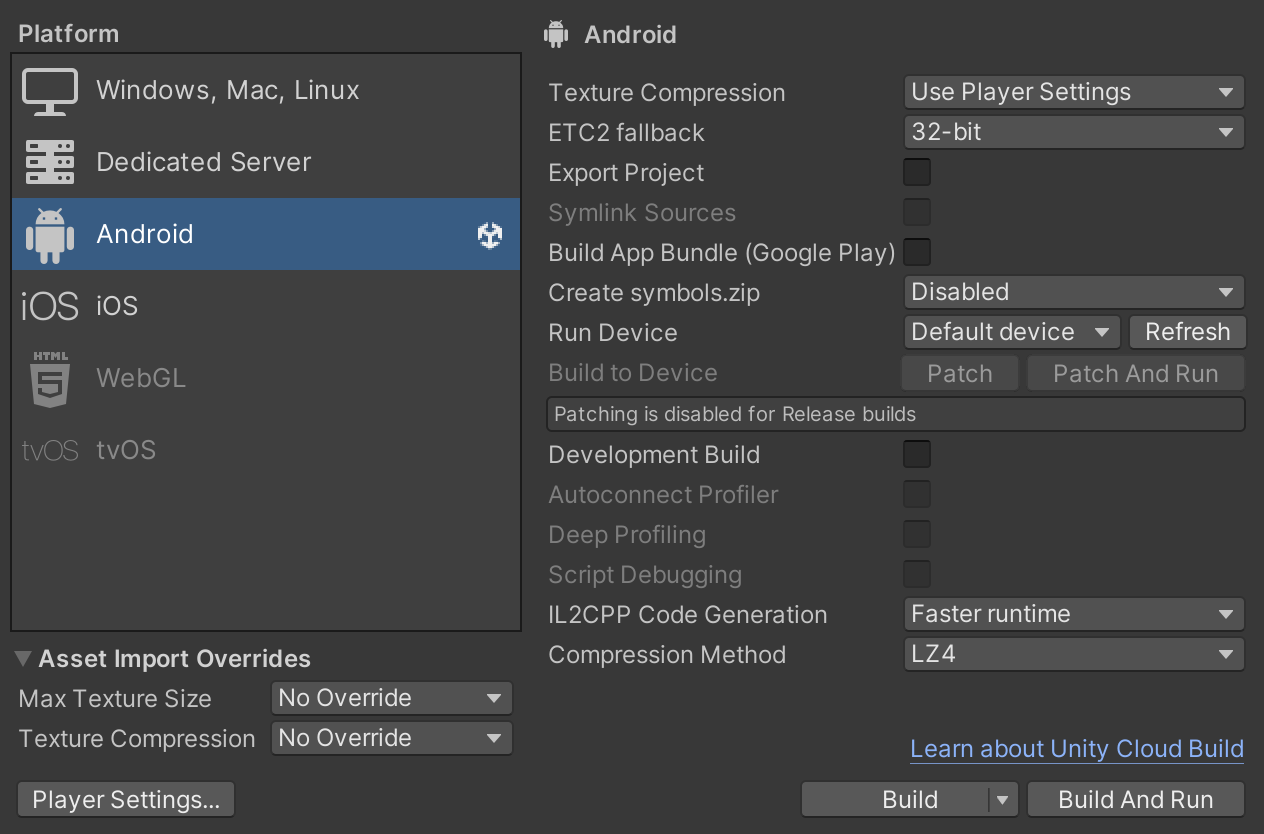
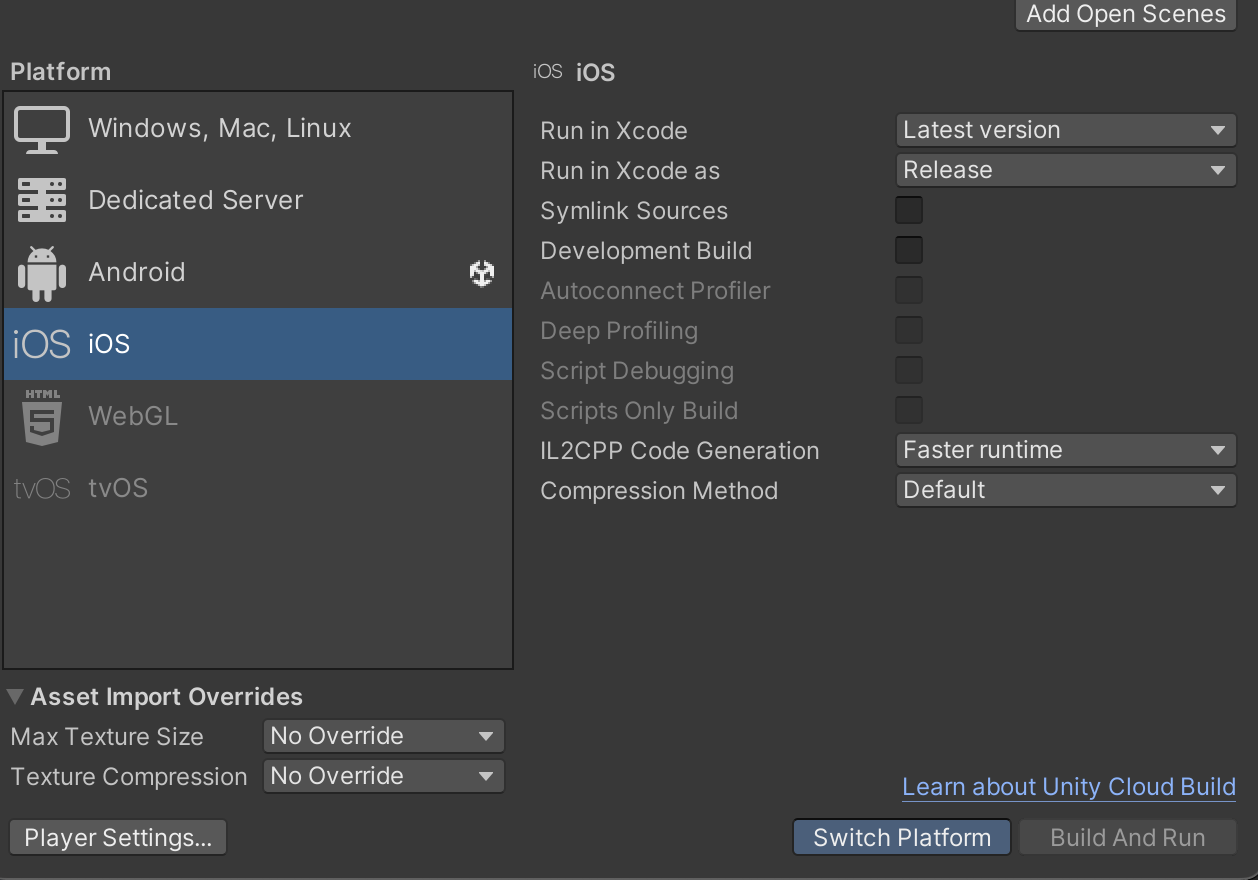
Choose the platform you are building for (Android or iOS) and click Switch Platform to ensure the settings are applied to your selected platform.
Android Platform:
iOS Platform:
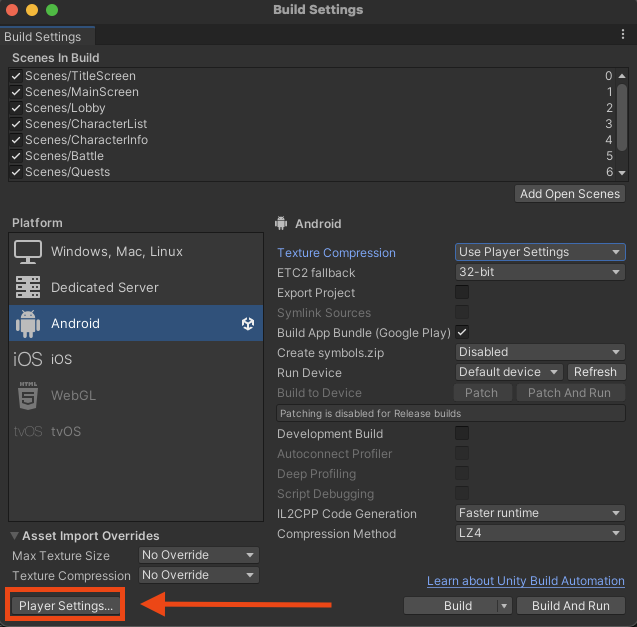
3. Open the Player Settings Window
Click Player Settings located at the bottom left corner of the Build Settings window. This will open the platform-specific settings for your selected platform.
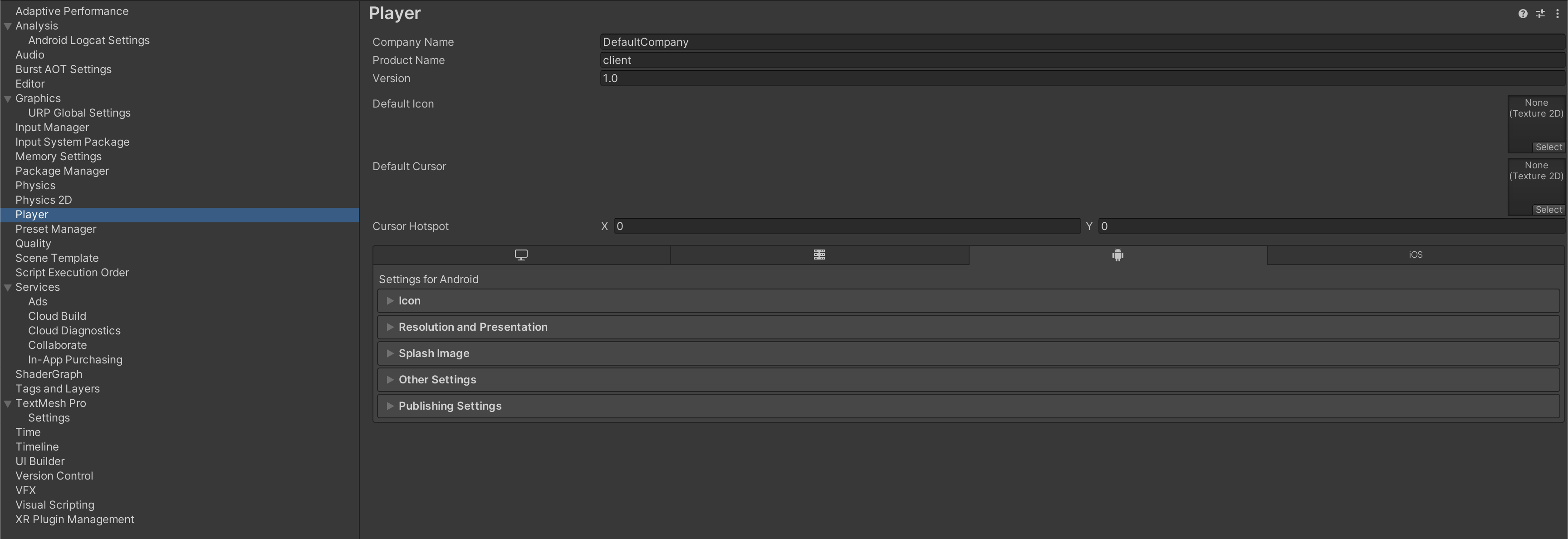
4. Platform-Specific Settings
Each platform has its own set of configuration tabs:
- Windows, Mac, and Linux
- Android
- iOS
4a. Windows, Mac, and Linux
Resolution and Presentation
- Run in Background: Enable this option.
4b. Android Settings
Resolution and Presentation
- Default Orientation: Landscape Left
Other Settings
Rendering:
- Texture Compression Format: ASTC
Identification:
- Minimum API Level: Android 10.0 (API Level 29)
- Target API Level: API Level 34
Configuration:
- Scripting Backend: IL2CPP
- Target Architectures: Include ARM64
Publishing Settings
- Enable Custom Main Gradle Template
- Enable Custom Base Gradle Template
- Enable Custom Properties Template
- Enable Split Application Binary
4c. iOS Settings
Resolution and Presentation
- Default Orientation: Landscape Left
Other Settings
Rendering:
- Texture Compression Format: ASTC
Deprecated (For Now)
Configuration:
-
Supported URL Schemes:
-
Size: 1
-
Element 0:
{REVERSED_CLIENT_ID}You can find the
REVERSED_CLIENT_IDin the.plistfile downloaded from the iOS OAuth credentials.
-